If you for some reason want to use a VPN-account directly from your own device without the Sanuk VPN-box, you can purchase an account and follow the instructions and examples below. These are however not guaranteed to work on all devices, and we strongly recommend that you use a VPN-box instead.
If you are using Windows
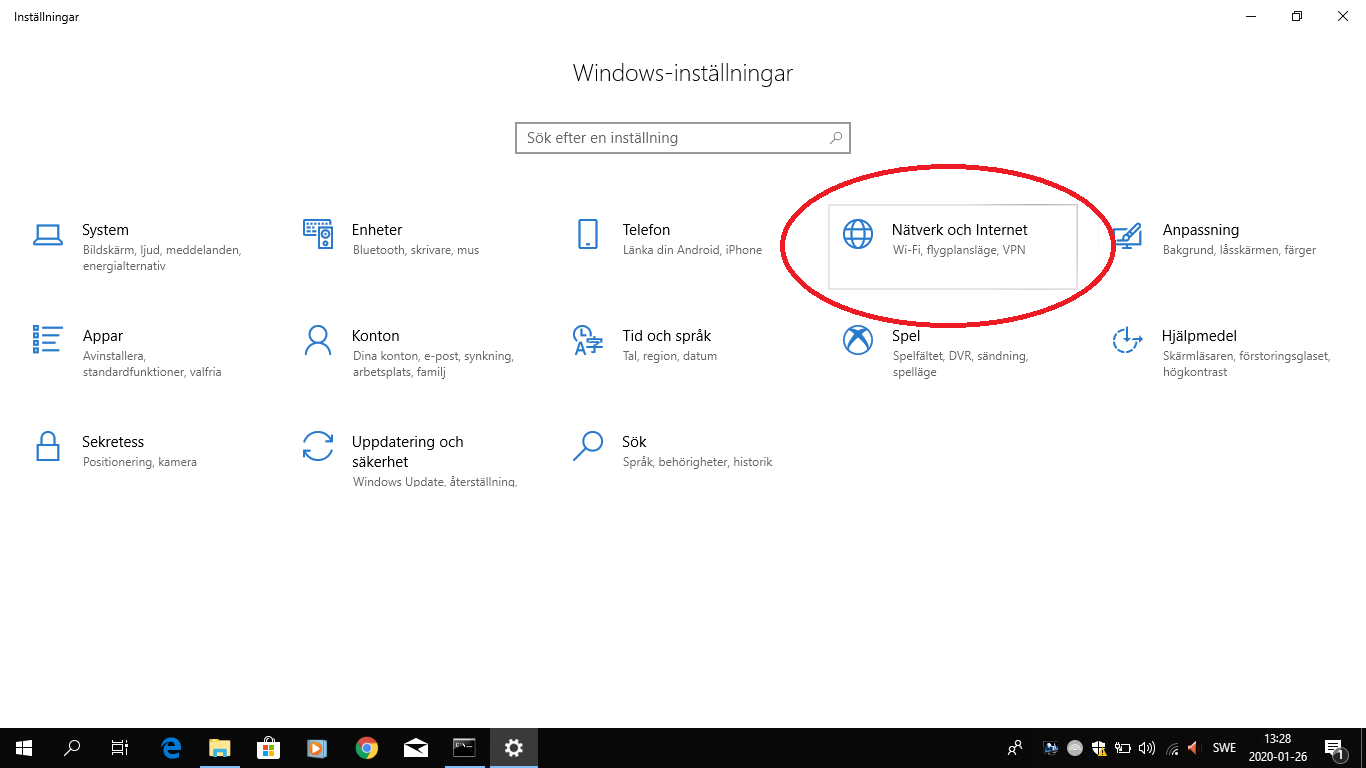
Go to Windows settings (e.g. press the Windows button, click the gear wheel at the bottom left) and then Network and Internet :
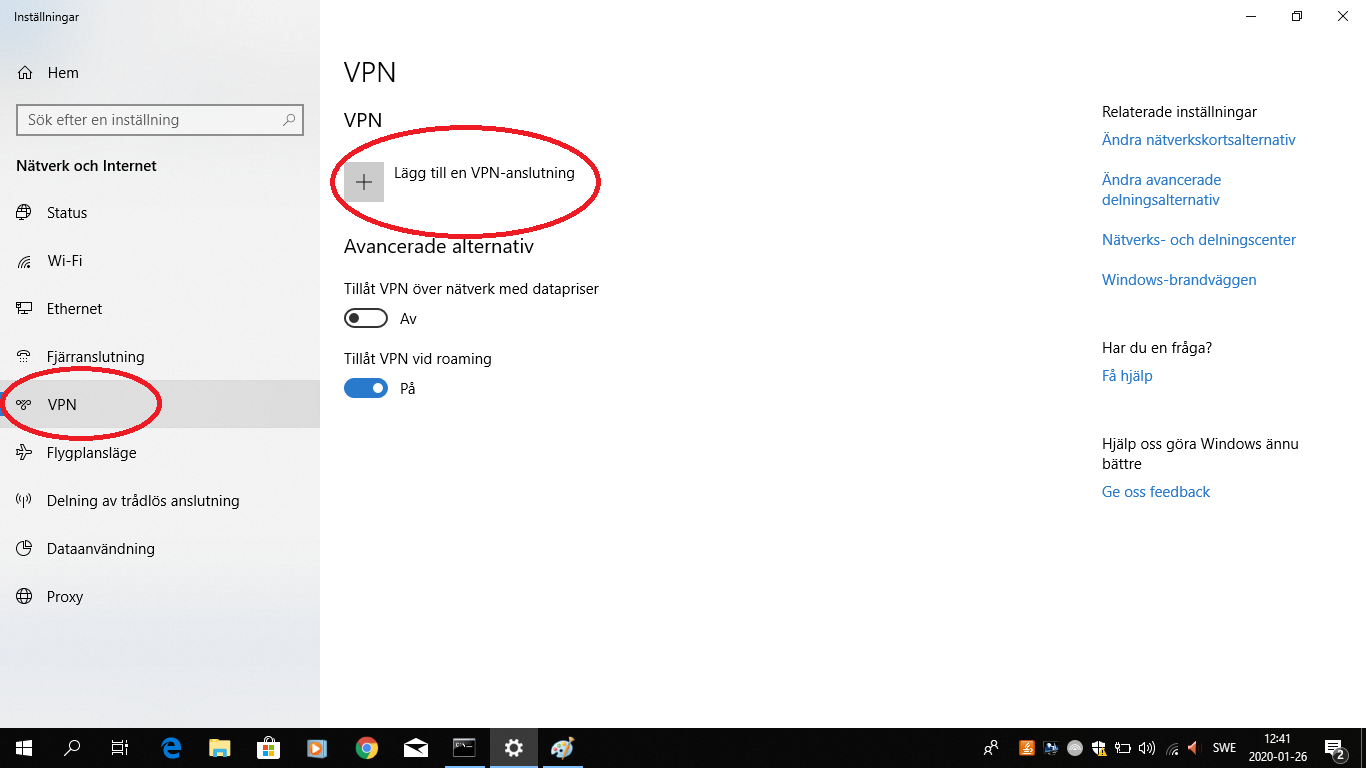
Click on VPN and then Add a VPN-connection:
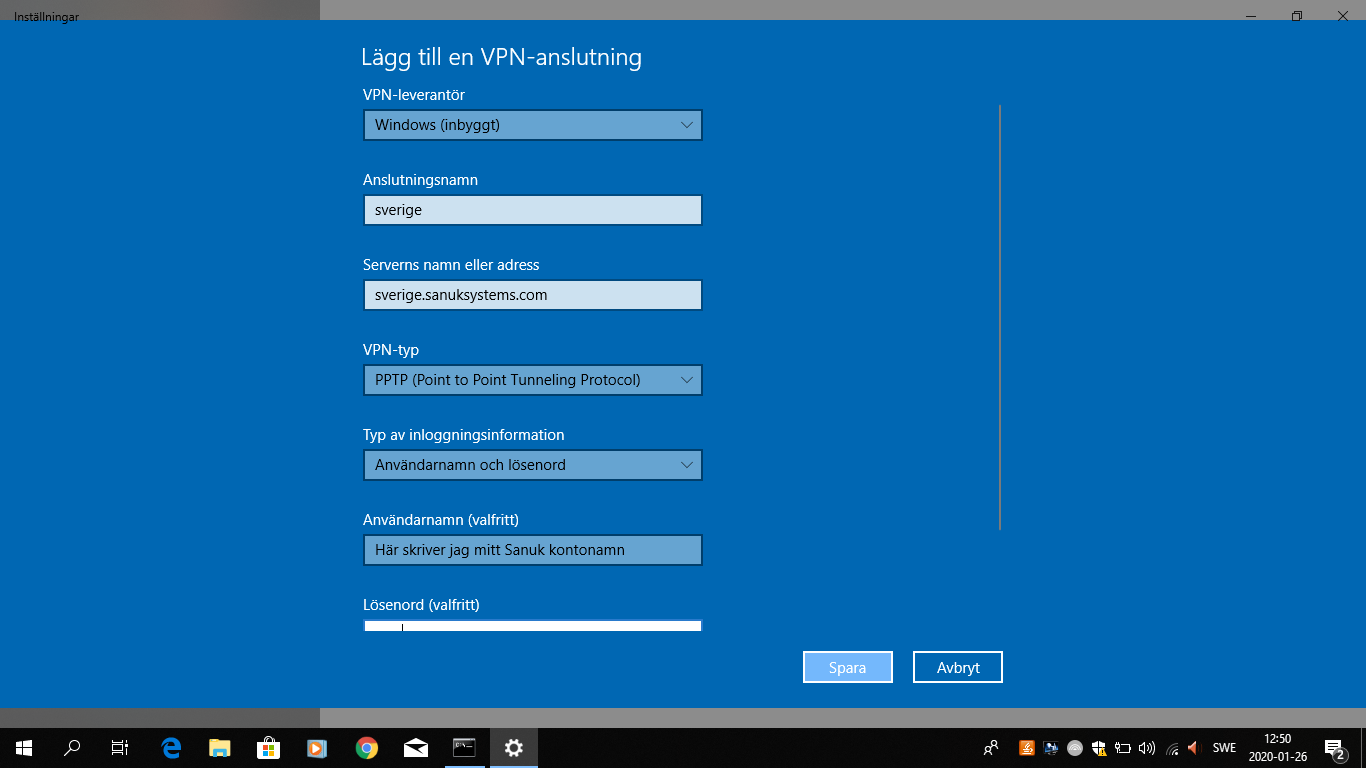
Fill in as shown in the image below;
VPN-provider: Windows Built-in
Connection name: sverige
Server name: sverige.sanuksystems.com
VPN type: PPTP
Connection type: Username and Password
Username: Enter the account name you received via email
Password: Enter the account name you received via email
Click Save.
Your new account will now appear under Settings.
Click on the account, then click Connect to start using it:
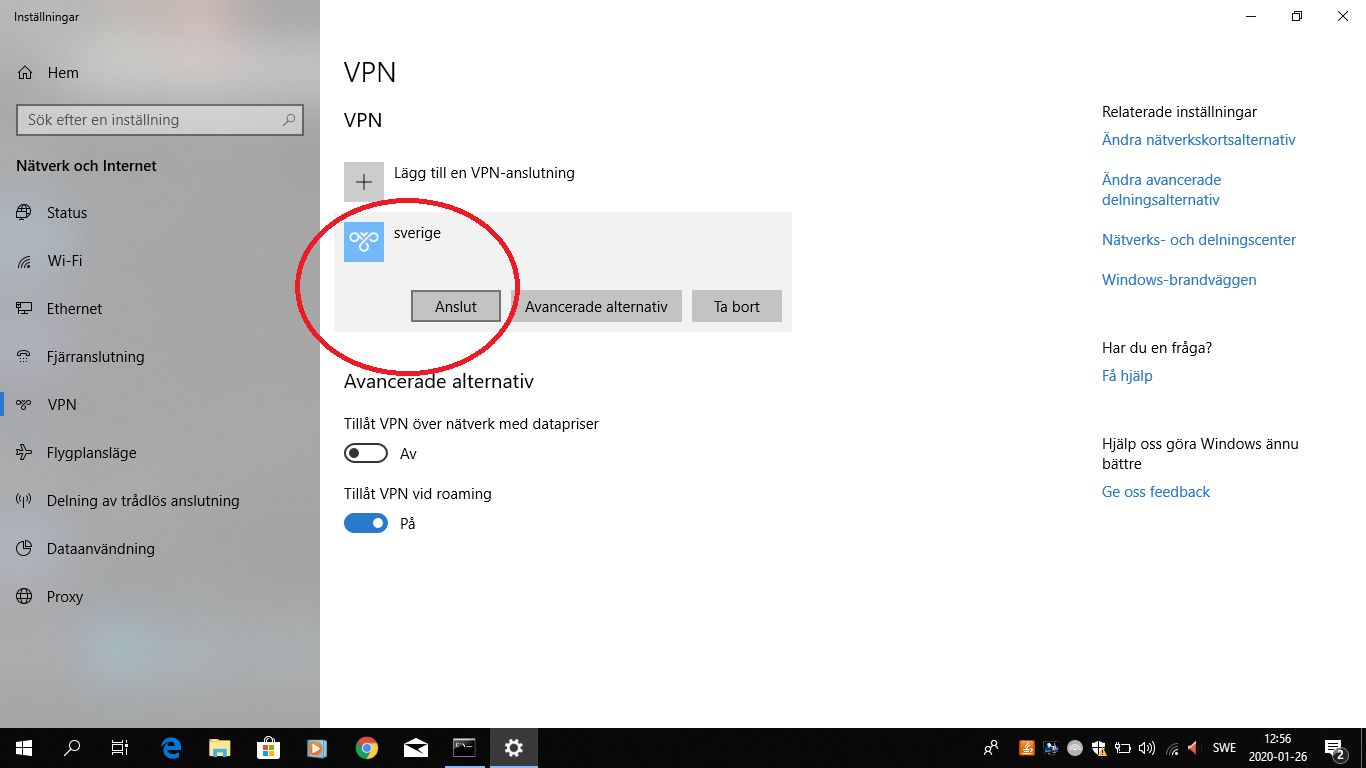
Your computer is now connected to Sweden, and all data is sent securely via internet in Sweden.
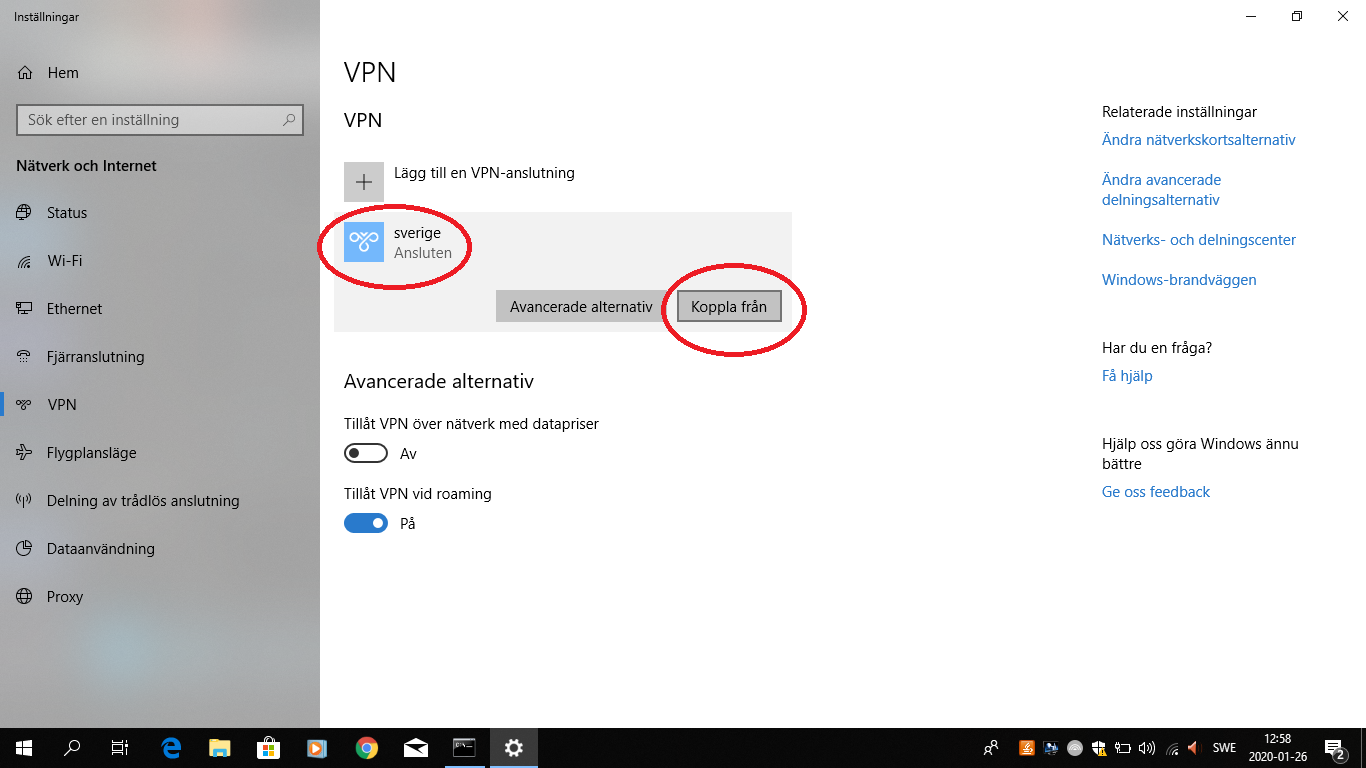
When you’re done, click Disconnect to end the connection.
It is important to disconnect as soon as you no longer need the VPN, as everything will be much slower and you’ll use up data when you’re connected all the way via Sweden.
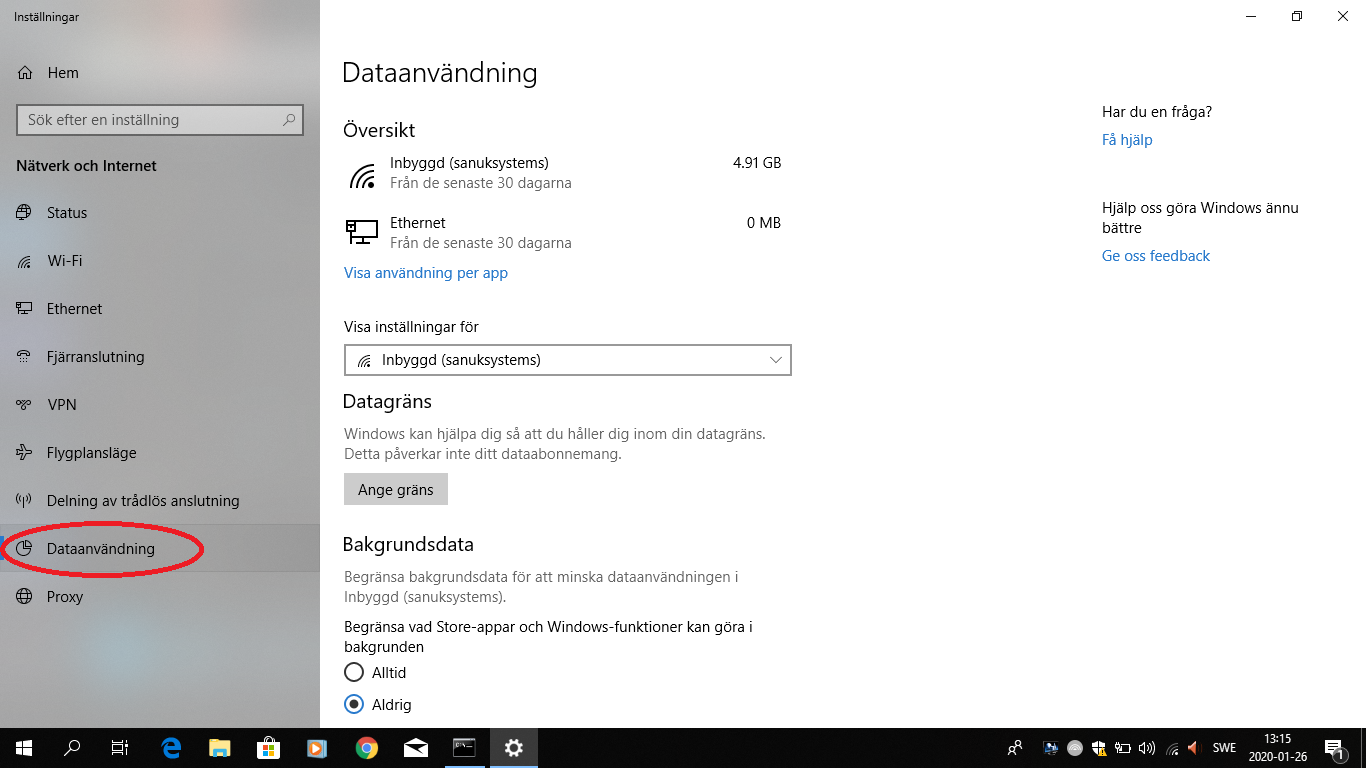
On the Data Usage page in Settings, you’ll see how much data you’re using. Look at this just before you start the VPN and then after you’ve disconnected, and you’ll see how much data was used while you were connected.
Be sure not to do any major software updates on your computer while you’re connected to the VPN, as these will use up a lot of data.
If you’re using Android
Install the app Strongswan from Google Play.
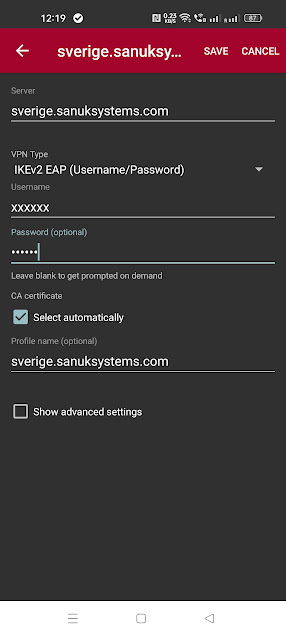
Create a new VPN-profile with the following settings:
Server: sverige.sanuksystems.com
VPN Type: IKEv2 EAP (Username/Password)
Username: Enter the account name you received via email
Password: Enter the account name you received via email
If you’re using Apple macOS
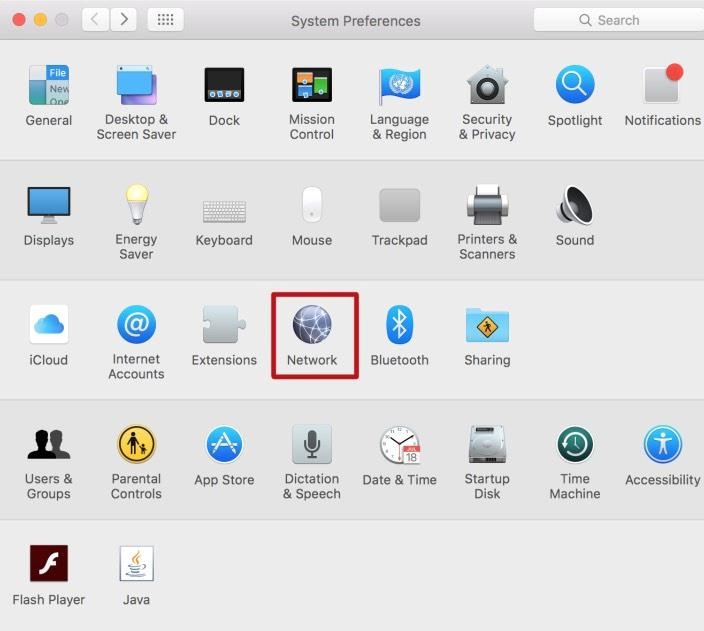
Open the System Preferences and click Network.
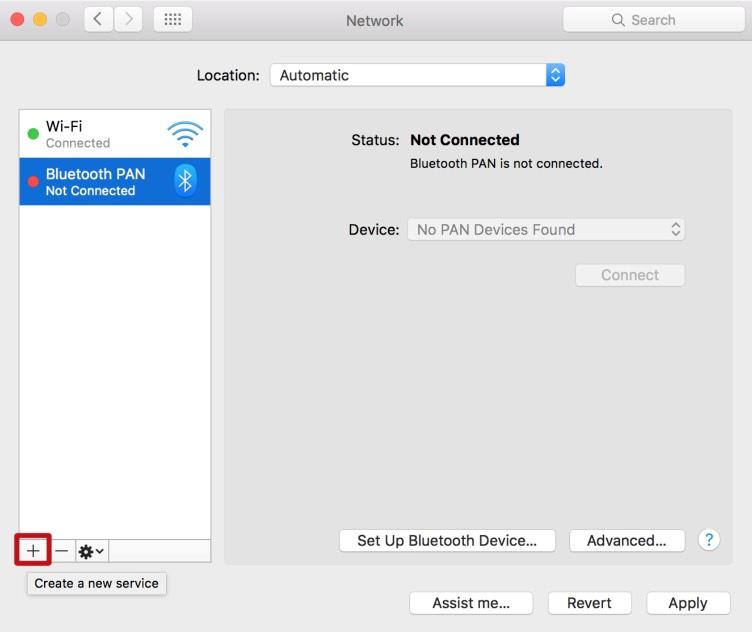
Click the +
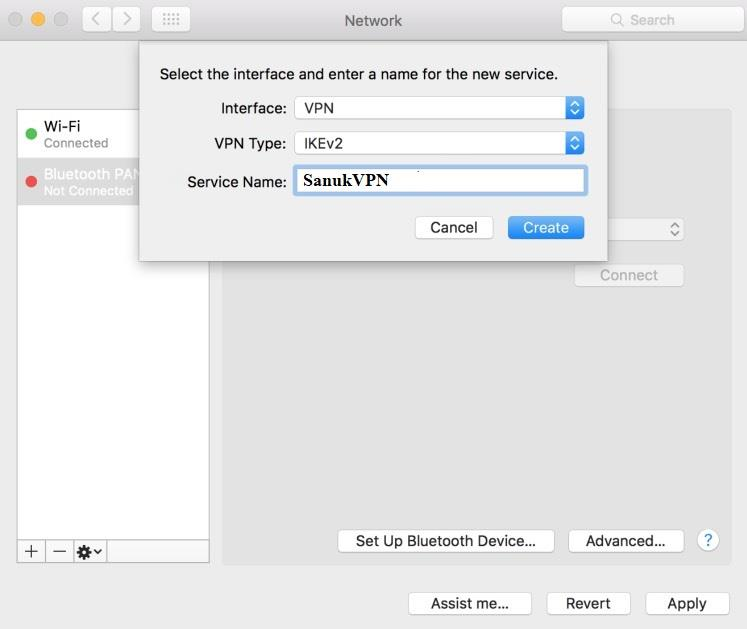
Select VPN in the menu, then IKEv2 as the VPN type. Enter SanukVPN as the Service Name, and click Create.
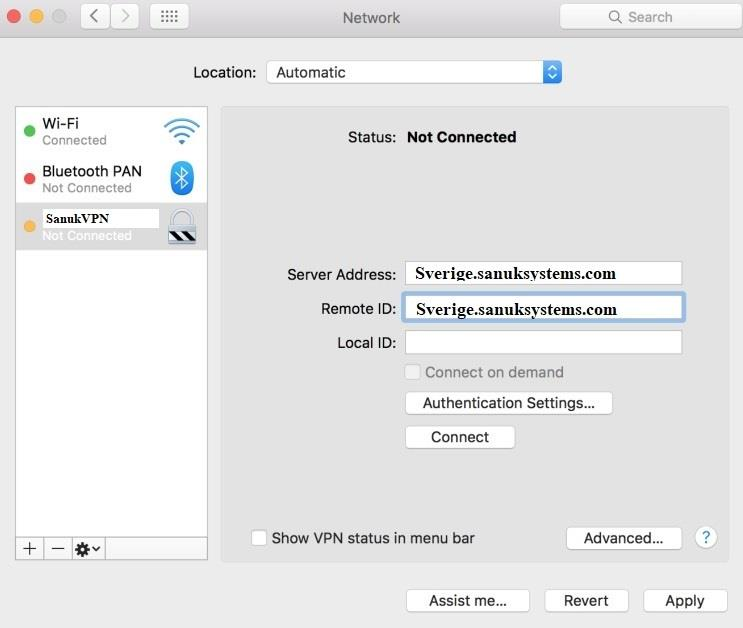
Enter sverige.sanuksystems.com as both the Server Address and Remote ID. Click Authentication Settings.
Select Username (Användarnamn) and enter the account name you received via email as both the Username and Password.
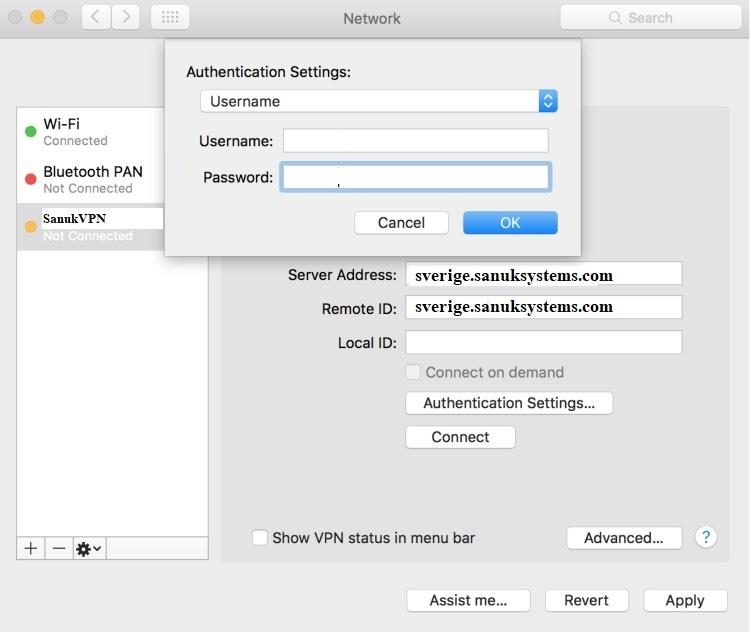
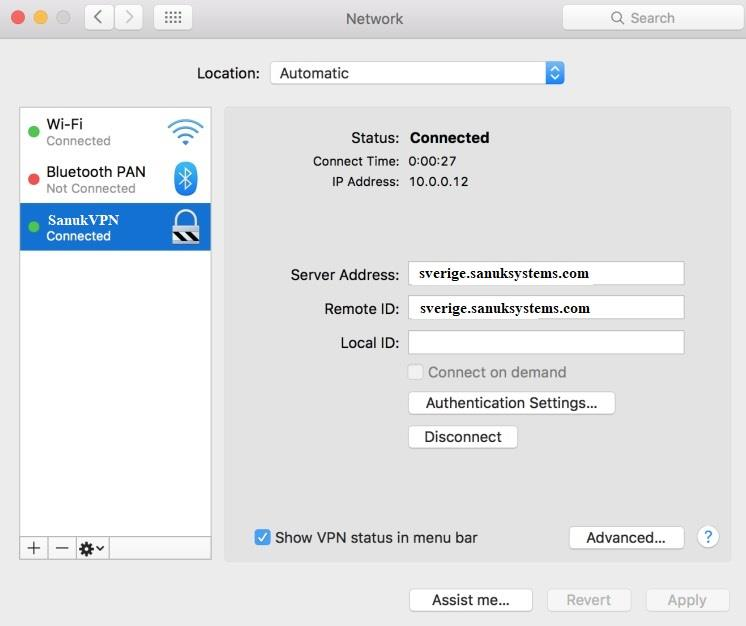
Check the box ‘Show VPN status in menu bar’ and click Apply. Click ‘Connect’ to connect your computer to the VPN service.
If you are using Apple iPhone/iPad
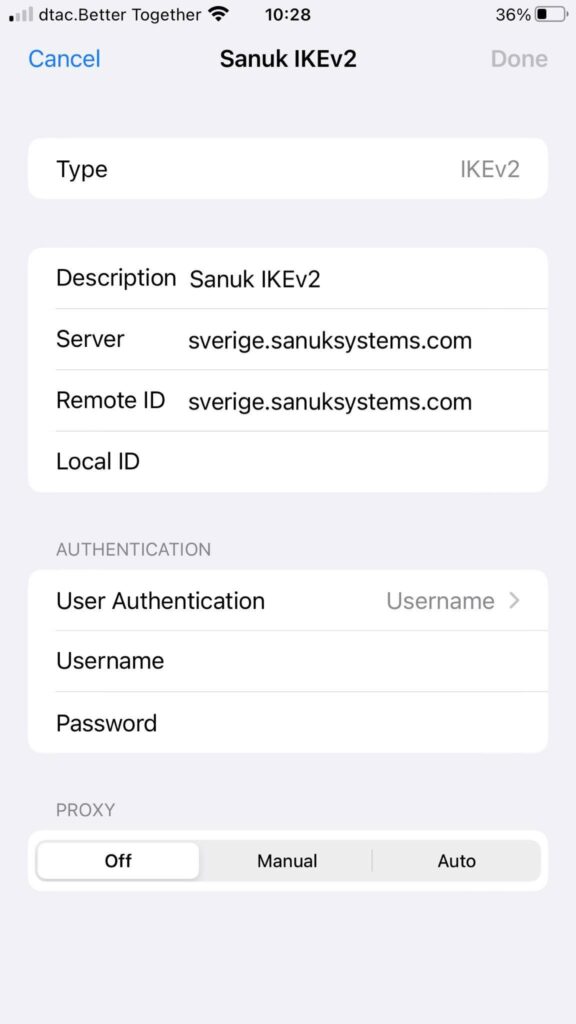
Create a new VPN-profile with the following settings:
VPN Type: IKEv2
Server: sverige.sanuksystems.com
Remote ID: sverige.sanuksystems.com
Username: Enter the account name you received via email
Password: Enter the account name you received via email